
Your browser is already at work.
Using the Prove Dashboard
A walkthrough of every section of the Storage Verification page and how to run the audit cycle from anywhere, not just this browser.
We believe that storing your data shouldn’t require blind trust. If we’re holding your files, you should be able to check that they are there and uncorrupted.
To support that goal, we make ourselves available to be challenged. Creating a challenge key is a deliberate first step. A key is the whole basis of this feature, so you choose which pins it covers and download it yourself.
If you’d like to keep collecting evidence when your browser is closed, on a server, in a cron job, from a friend’s machine, you can export that same key and audit us from anywhere. We are answerable to you, and that’s how it should be.
This page walks you through the dashboard and gets you familiar with the concepts.
The four roles
Many proof-of-storage systems have been developed over the years. Each one works a little differently and comes with its own strengths, limitations, and tradeoffs.
To make these systems easier to discuss, we break them down into four common roles:
Tagger
Prepares the data for proving by generating the cryptographic metadata that makes future proofs possible.
Challenger
Asks the Prover to demonstrate possession of specific pieces of data.
Prover
Stores the data and generates proofs showing that it is still available.
Verifier
Checks the proof and determines whether the challenge was answered correctly.
These are roles. One person or system may perform several at the same time.
For example, some protocols require secret information to verify proofs. In those systems, the Tagger and Verifier must be the same party, which means that party must also act as the Challenger. Other protocols support public verification, allowing anyone to act as a Challenger or Verifier. Pinion uses a publicly verifiable scheme.
Pinion uses the following arrangement:
Proof keys are at the center of Pinion’s arrangement. A proof key is a cryptographic key pair: Pinion holds the private key and the tags it created with that key, while you hold the public key. Because the verification scheme is publicly verifiable, the public key is all you need to issue challenges and check proofs. You create a key explicitly on the dashboard, choosing which pins it covers, and you can create as many separate keys as you like: one per project, one per machine that will challenge us, however you want to organize it.
Tagger
Pinion acts as the tagger. Creating tags requires access to all the block data, so content must reach the pinned state before tagging can begin. This can take a few seconds to a few minutes after upload, because an IPFS node walks every block in the DAG and verifies its integrity. Once content is pinned, Pinion generates small pieces of metadata called tags, derived from the actual block data using the proof key. Each tag is stored by Pinion and associated with the specific proof key that created it.
Challenger
You are the challenger. Your browser can send challenges on demand from the dashboard, and you can also export the key and challenge from anywhere else. The exported key file contains your public key material; a separate roots file lists the CIDs eligible to be challenged. Challenge messages are tiny, typically tens of bytes, regardless of how many blocks you ask Pinion to inspect. You control how comprehensive each challenge is: sample a small fraction of blocks, or inspect all of them at once. More comprehensive challenges take Pinion more time to respond, but the size of the challenge and proof on the network stays the same either way.
Prover
Pinion acts as the prover. When a challenge arrives, Pinion reads the compact challenge message, determines exactly which blocks need to be inspected, and computes a proof against the actual stored block data. That proof is sent back to you. The computation is done over real stored content, so a valid proof demonstrates that Pinion holds the data at the moment the challenge was answered.
Verifier
You are the verifier. Your exported key file contains everything needed to check Pinion’s response. The scheme is publicly verifiable, so you can run verification from your browser or from a compatible third-party client, on infrastructure you control, independently of your browser session. If the proof checks out, you have cryptographic confirmation that Pinion possessed all the inspected blocks at the time of the challenge.
Creating a key
The first time you open the dashboard with no keys yet, you’ll see a prompt to create your first one. Click Create your first key (or New keyfrom the key selector once you have others), give it an optional name, and choose which of your pinned files it should cover. A key doesn’t have to include everything.
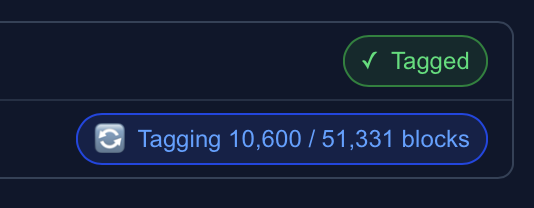
Click Create & download keyand the key file downloads immediately: save it somewhere you’ll find it later. Anyone holding that file can independently challenge Pinion to verify your data, from this browser or anywhere else. Tagging the pins you selected happens in the background afterward. Large files can take a few minutes, and you can watch progress in the key’s detail view once the modal closes.
Switching between keys
If you have more than one key, a row of key chips (or a dropdown, once you have more than a handful) sits above the detail view. Click one to switch. A small dot on each chip is green once that key has ever been successfully challenged, and turns red if it has a real failure. Only one key’s full detail is shown at a time; the chips are how you move between them.
With multiple keys, a compact health strip also sits above the chips: one line per key showing its pin count and audit count, so a problem on a key you aren’t currently looking at is still visible without switching to check.
Key Details
Selecting a key from the chips above swaps in its detail view below. It shows two server-tracked lifetime numbers, Challenged (how many audit rounds this key has ever answered, from any challenger, browser or external) and Blocks challenged (the cumulative number of blocks sampled across those rounds), plus when the key was last audited.
We deliberately don’t distill those numbers into a single derived percentage or confidence score. A raw count of challenges and blocks is a fact you can check for yourself; a heuristic curve built on top of it is something you’d have to trust us to have calculated honestly. We’d rather show you what we actually know.
Below the stats is the pin list for this key, each one showing its tagging status, and a footer with the total blocks tagged and a Refresh stats button. At the bottom, Export key file and Export rootslet you re-download either file at any time. See “Auditing from outside your browser” below for why they’re kept separate.
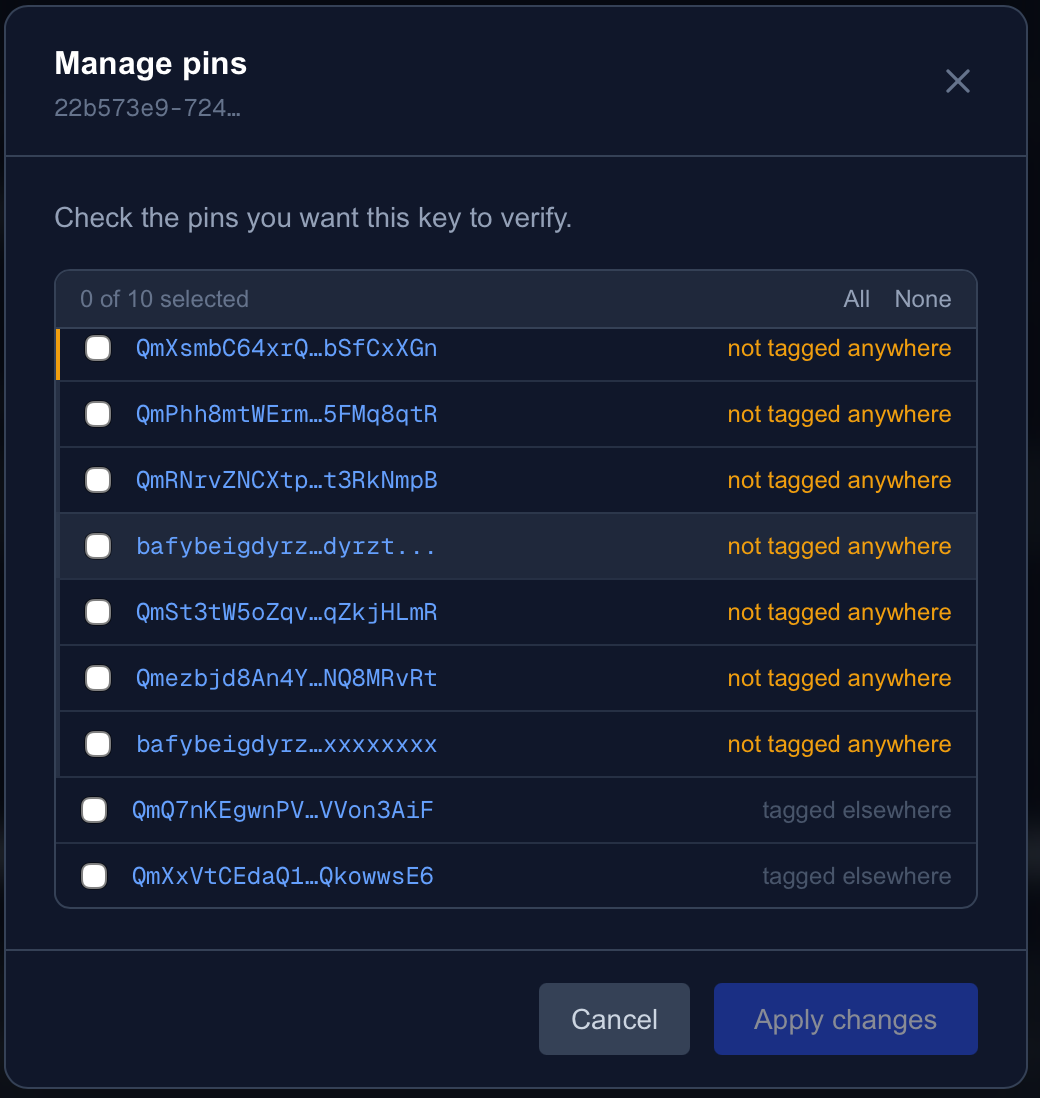
Click Manage pins to change which pins this key covers. Check or uncheck any of your pinned files, then Apply changes. Newly checked pins start tagging in the background; a pin already tagged under a different key shows as “tagged elsewhere” so you know it’ll need its own tagging pass under this key too.
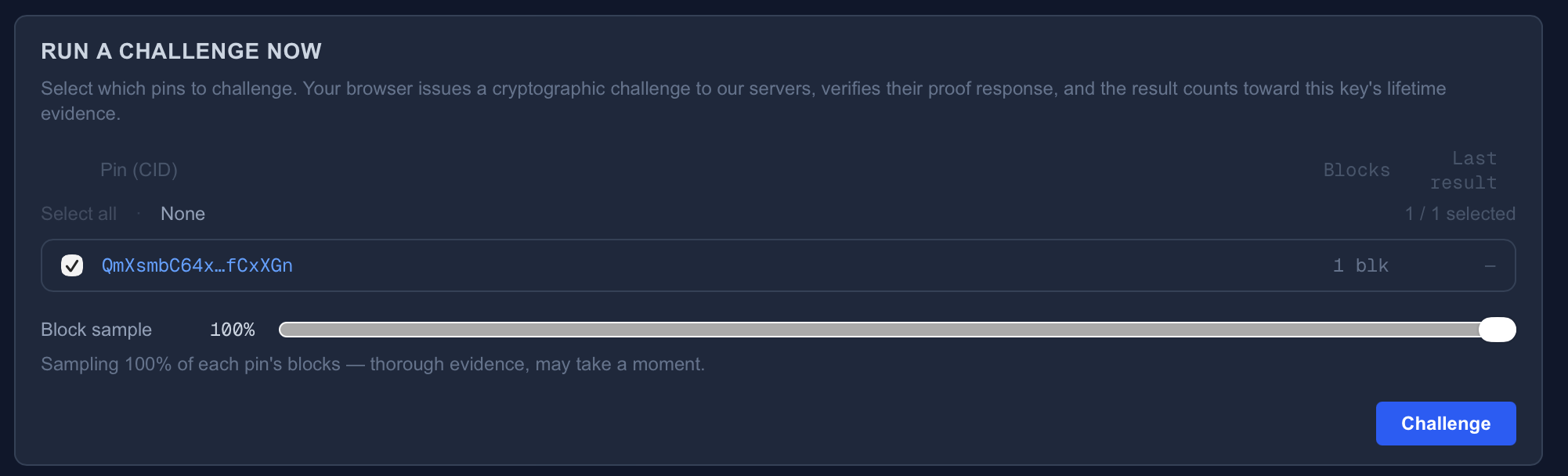
Run a challenge now
Challenges only ever run when something asks for one. There is no automatic background loop quietly running while your tab is open. The dashboard is a viewer of server-tracked evidence, and this panel is the one place your browser actively participates as a challenger, on demand.
Select which pins to include, choose what fraction of their blocks to sample with the Block sample slider, and click Challenge. Your browser builds a random challenge, sends it, and cryptographically verifies the response itself. The result appears immediately in the log below and counts toward the key’s lifetime numbers shown in its detail view.
The Challenge Log
Every challenge your browser issues appears here, scoped to the key you’re viewing. Because verification runs entirely in your browser against your locally-held key material, Pinion has no way to tamper with what you see in this log.
Each row shows a result: PASS means the mathematics checked out. Pinion produced a proof that requires possession of your actual block data to construct. FAIL means the proof was invalid, the only result that means your data may actually be at risk. STALE and ERRORmean the round couldn’t be completed: a pin changed state mid-round, or a network or server hiccup happened. That's not evidence of data loss, just try again.
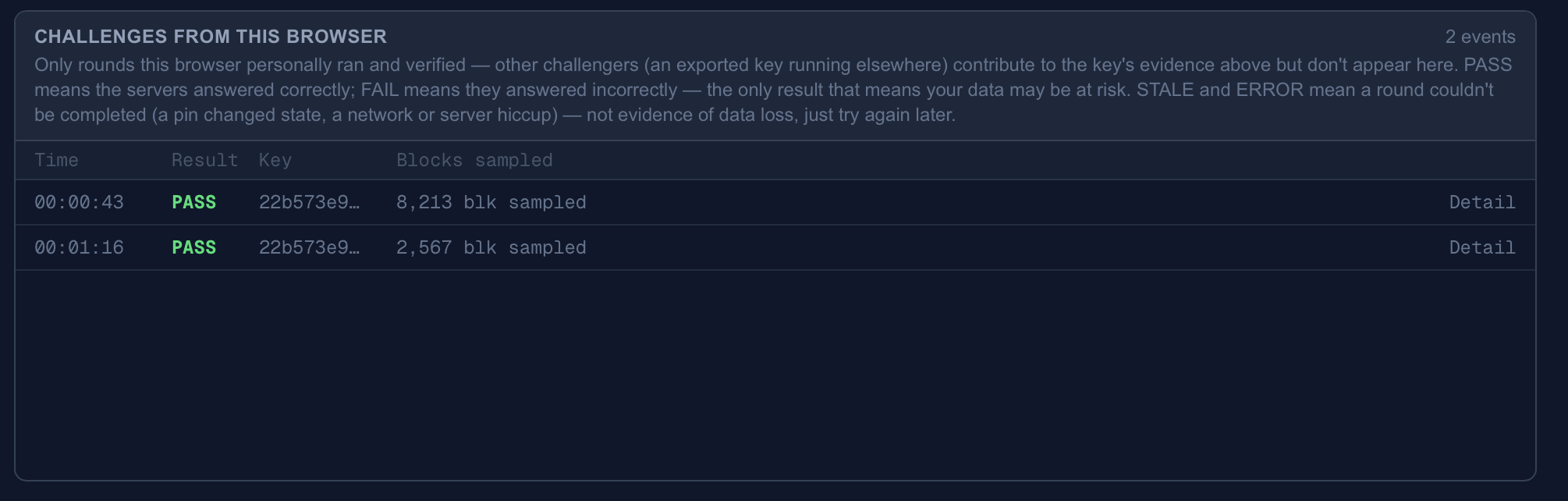
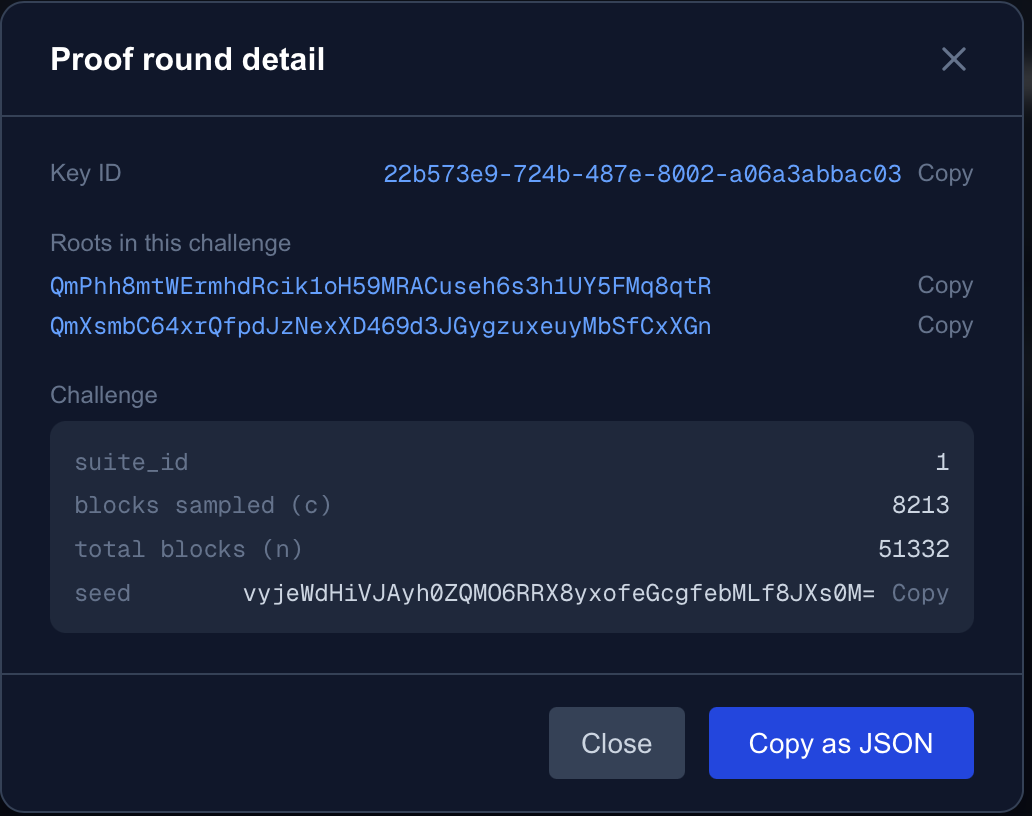
Any row that isn’t a PASS gets a Retry button. Every row gets a Detail button, which opens the key ID, the exact roots covered, and the decoded random challenge (the seed and sample size) used for that round, along with a Copy as JSONbutton that produces everything you’d need to include if you’re reporting a problem to us.
Auditing from outside your browser
Your browser is convenient, but it only challenges us when you click the button and the tab is open. For continuous, unattended verification, on a server, a cron job, a CI pipeline, a machine you trust more than your laptop, export the key and run the exact same audit cycle from anywhere.
A key’s two export buttons (in its detail view) produce two separate JSON files, and they’re separate on purpose:
Export key file
Your public key material. This never changes for the life of the key, so you only need to export it once.
Export roots
The CIDs currently tagged under this key. Tagging runs in the background, so this list can change whenever you add or remove a pin. Re-export it after either, rather than trusting an old snapshot.
Neither file contains anything secret. The private key material never leaves our servers, so there’s no harm in keeping copies around or moving them between machines.
The easiest way to run the audit loop against those two files with no code of your own is testclient, a small command-line tool that ships in the pinion-prover repository:
# Build it once
go build -o testclient ./cmd/testclient

# Point it at the two files you exported from the dashboard
./testclient import --key-file pinion-proof-<id>.json --roots-file pinion-roots-<id>.json

# One round: challenge -> prove -> verify
./testclient audit --all

# Or keep auditing forever, once an hour
./testclient audit --all --loop --interval 1hauditissues a fresh random challenge, sends it to us, and verifies the proof locally. Those are the same three steps the dashboard’s own Run a challenge now button performs, just running unattended on your own schedule. A FAIL, or a round that errors out, is the signal worth acting on; report it to us with the key ID, the root, and the timestamp.
Prefer to integrate the audit loop into your own tooling instead of running a separate binary? The same steps are a handful of HTTP calls and one cryptographic pairing check away in @pinionengineering/prover-client, which also documents the exact wire format if you’d rather implement a verifier in another language entirely.
Reading the results
A PASSmeans Pinion produced a valid proof for the blocks sampled in that round. The sampled blocks were present and intact at that moment, and each round adds to that key’s cumulative, server-tracked challenge count.
A FAIL means the proof did not verify for those specific blocks, the only result that means your data may actually be at risk. A STALE or ERRORresult means the round itself couldn’t be completed, which is not the same thing: investigate any of the three, and contact us if a FAIL doesn’t resolve on retry.
Keep challenging us
Every verified proof is a data point. The more you challenge us, from your browser, from a server, from a script that never stops, the harder it becomes for any storage failure to go undetected.